
Desktop application
Bayesian SSH provides a keyboard-driven desktop application alongside the command-line tool. Both use the same local SQLite database, configuration, and environment profiles.
Launching the application
Section titled “Launching the application”Launch the desktop interface from your application menu, or run it from a terminal:
bssh desktopThe command starts bayesian-ssh-desktop in the background, detached from your terminal session. You can also run the binary directly:
bayesian-ssh-desktopTo start the desktop application with a specific environment profile, pass the --env flag:
bssh desktop --env stagingInterface layout
Section titled “Interface layout”The sidebar organizes your workflow into dedicated views:
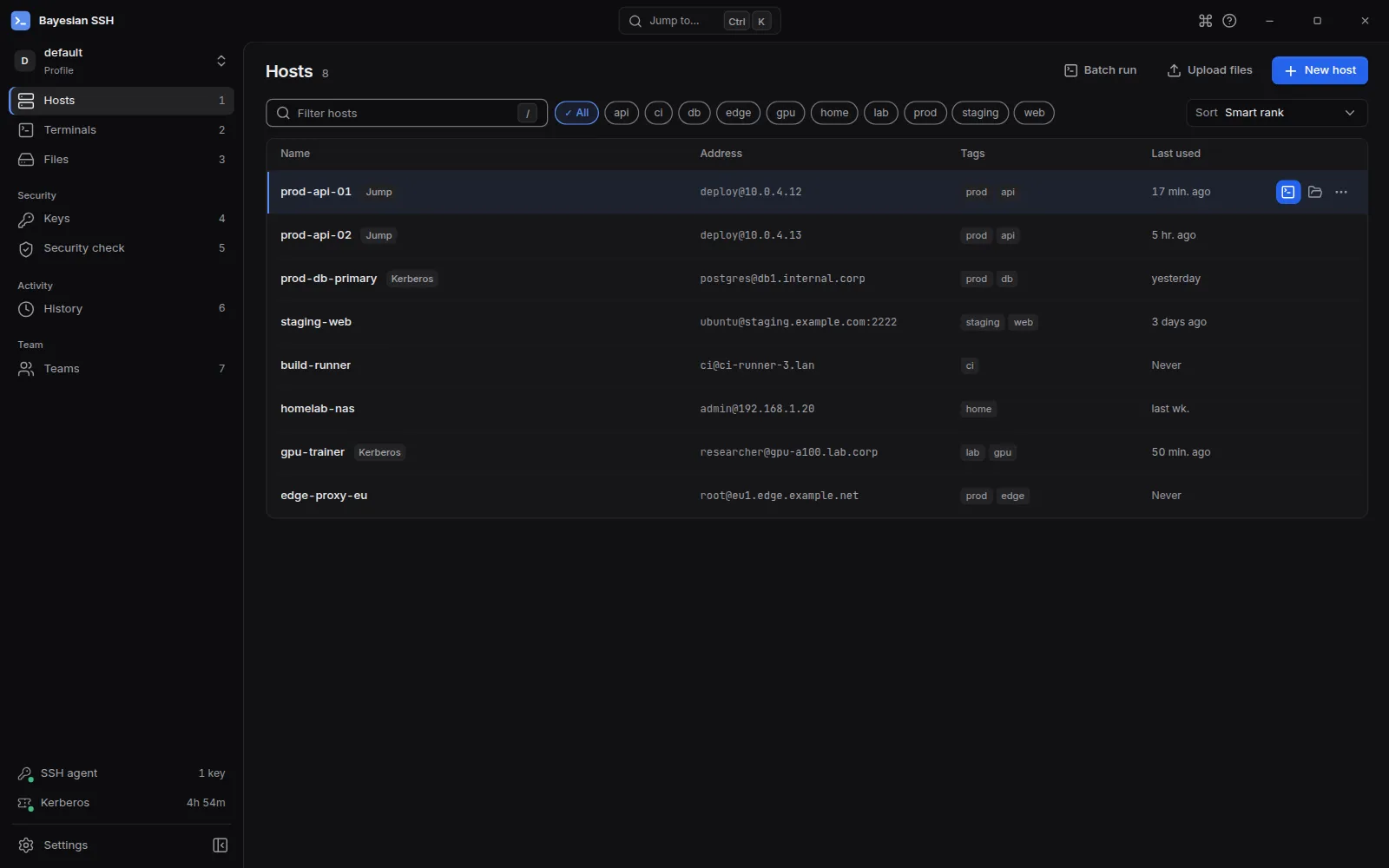
- Hosts: View, filter, and search saved connections. See rankings, connection status, tags, and quick actions.
- Terminals: A built-in multi-tab terminal emulator. Connect to multiple hosts simultaneously, switch or reorder tabs, and search terminal output.
- Files: An SFTP file manager for browsing remote directories, uploading, and downloading files. You can toggle this view in Settings.
- Keys: Inspect local SSH keys, generate new keypairs, and view keys currently active in your SSH agent.
- Security check: Run security audits directly from the interface (
bssh audit) to identify weak algorithms, missing keys, or insecure permissions. - History: Review past connection sessions and usage timestamps.
- Teams: Manage team connections, member invitations, device approvals, and verified audit logs.
- Settings: Adjust application preferences, appearance, terminal fonts, updates, and environment profiles.
Command palette and keyboard shortcuts
Section titled “Command palette and keyboard shortcuts”Open the command palette from anywhere by pressing Ctrl+K (or ⌘K on macOS).
Inside an active terminal tab on Linux or Windows, press Ctrl+Shift+P (⌘K on macOS) to open the palette without intercepting shell control chords.
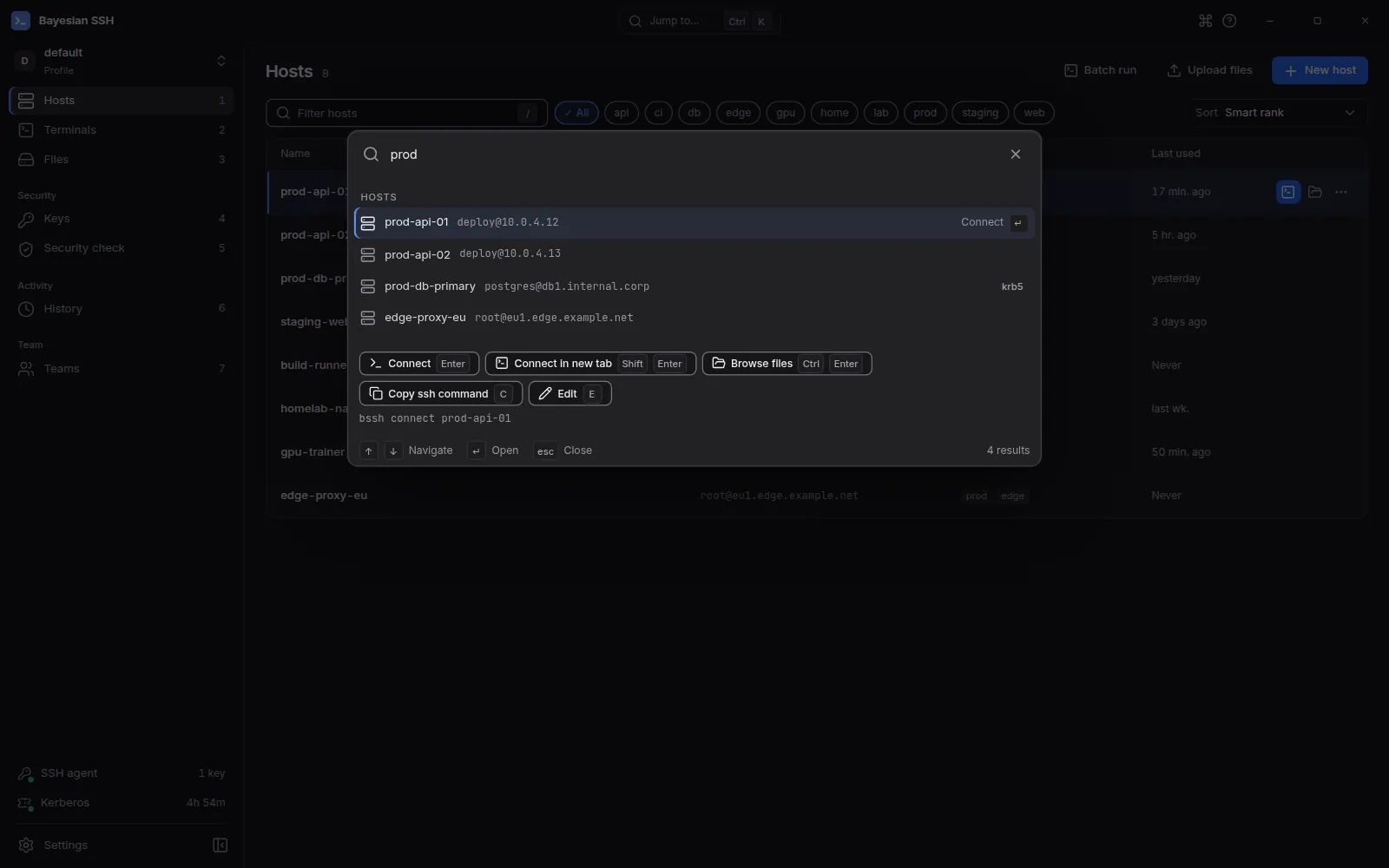
The command palette allows you to search hosts, switch views, edit connections, browse files, and run commands. Press ?, F1, or Ctrl+/ (⌘/ on macOS) to open the full keyboard shortcut sheet.
Common shortcuts
Section titled “Common shortcuts”| Action | Linux / Windows | macOS | Context |
|---|---|---|---|
| Command palette | Ctrl+K | ⌘K | Anywhere |
| Command palette inside terminal | Ctrl+Shift+P | ⌘K | Terminal |
| Settings | Ctrl+, | ⌘, | Anywhere |
| Keyboard shortcuts sheet | ? / F1 / Ctrl+/ | ? / F1 / ⌘/ | Anywhere |
| Focus filter or search | / | / | Global |
| Switch view by number (1–7) | 1 to 7 | 1 to 7 | Global |
| New host | N or Ctrl+N | N or ⌘N | Global |
| Connect to selected host | Enter | Enter | Hosts |
| Connect in a new tab | Shift+Enter | Shift+Enter | Hosts |
| Browse files | Ctrl+Enter | ⌘Enter | Hosts |
| Edit host | E | E | Hosts |
| Share with a team | S | S | Hosts |
| Copy ssh command | C | C | Hosts |
| Delete host | Delete | Delete | Hosts |
| Navigate selection | ↑ / ↓ or J / K | ↑ / ↓ or J / K | Hosts |
| Next terminal tab | Ctrl+Tab | Ctrl+Tab | Terminal |
| Previous terminal tab | Ctrl+Shift+Tab | Ctrl+Shift+Tab | Terminal |
| Close terminal tab | Ctrl+Shift+W | ⌘W | Terminal |
| Reopen closed tab | Ctrl+Shift+T | ⌘T | Terminal |
| Find in terminal buffer | Ctrl+Shift+F | ⌘F | Terminal |
| Zoom in / out / reset | Ctrl+Shift+= / - / 0 | ⌘= / - / 0 | Terminal |
| Cancel connection in progress | Esc | Esc | Terminal |
Themes and density
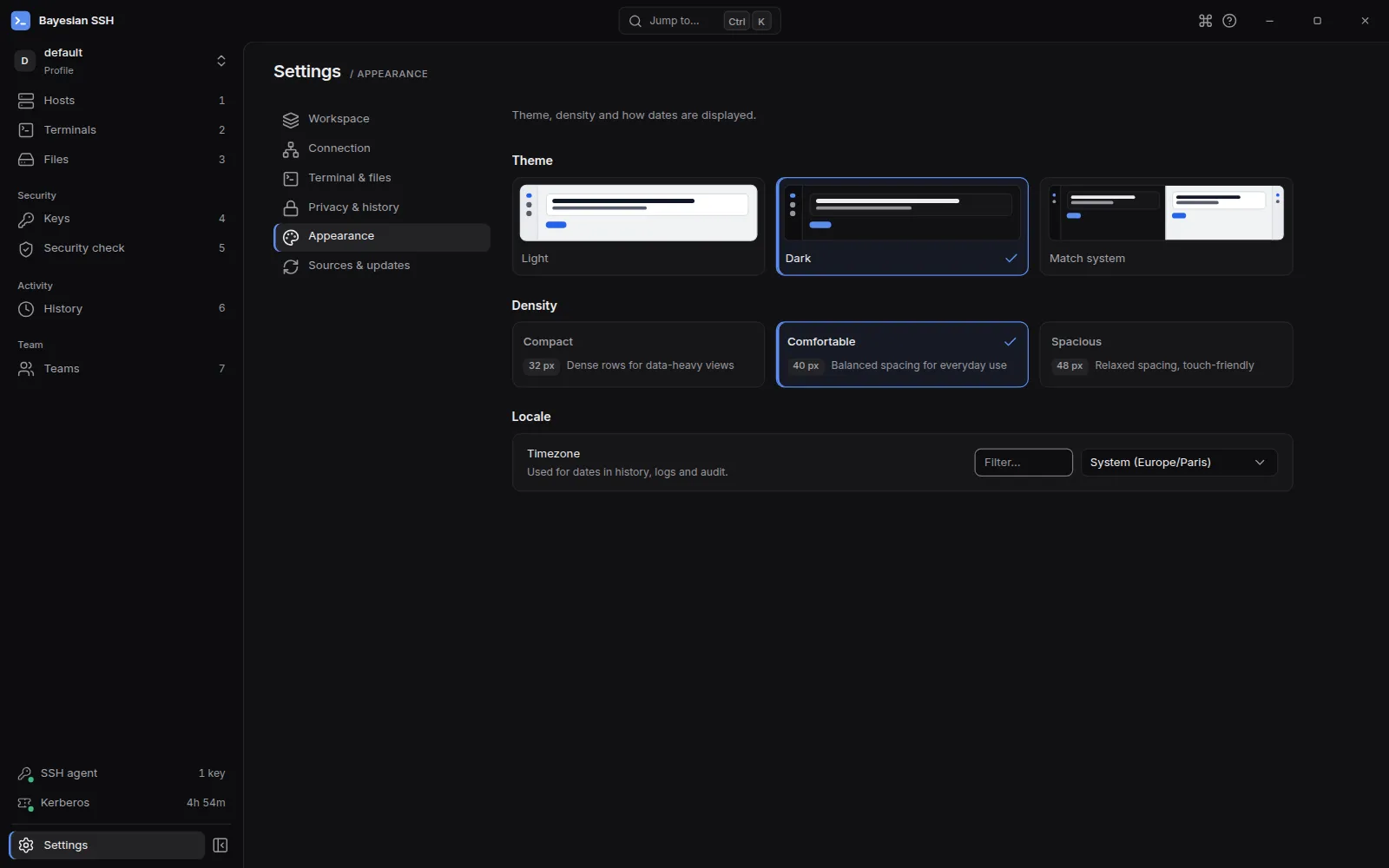
Section titled “Themes and density”Configure appearance preferences under Settings → Appearance:
Themes
Section titled “Themes”- Dark: High-contrast dark theme designed for low-light environments.
- Light: Clean, light color scheme.
- Match system: Automatically switches between dark and light themes based on your desktop operating system settings.
Row density
Section titled “Row density”Density controls the vertical spacing of list rows throughout the application:
- Compact: 32 px rows. Maximizes visible items for large host lists.
- Comfortable: 40 px rows. Balanced spacing for everyday use (default).
- Spacious: 48 px rows. Relaxed spacing suited for touch screens and high-resolution displays.
Software updates
Section titled “Software updates”Open Settings → Updates to inspect your current version and check for software updates. The update mechanism reflects your installation method:
- Snap package: Updates are handled automatically in the background by the Snap Store. You can update manually using:
sudo snap refresh bayesian-ssh
- Manual installation: If installed via
install.shor your operating system package manager, update by re-running the installation script or through your package manager. - Direct GitHub release: Click Check for updates to query GitHub for newer signed releases. When an update is available, click Install update to download and apply it. The application prompts for confirmation if active terminal sessions are running.