
Session history and active sessions
Bayesian SSH logs every connection you make in its local database, recording start times, duration, and exit status. You can inspect past sessions, analyze usage patterns, and manage running connections from the command line or the desktop app.
View session history
Section titled “View session history”Run bssh history to display recent SSH sessions.
bssh historyThe output shows a summary header followed by recent sessions, newest first:
📋 Session History
────────────────────────────────────────────────────────────────────────────────────────📊 Summary: 4 sessions | ✅ 3 successful (75.0%) | ❌ 1 failed | ⏱️  Avg duration: 12m 45s────────────────────────────────────────────────────────────────────────────────────────
SESSION    CONNECTION           STARTED              DURATION     STATUS          EXIT CODE────────────────────────────────────────────────────────────────────────────────────────3f2a91c0 ● web-prod             2026-10-23 09:14:22  18m 10s      Success         08c4e12a9   db-primary           2026-10-23 08:30:05  42m 02s      Success         01b7d55f0   bastion-ext          2026-10-23 07:15:40  2m 11s       Error           255f4a10e82 ● staging-api          2026-10-22 17:05:12  5m 28s       Success         0
Each row includes:
- SESSION: An 8-character prefix of the session UUID. A
●marker beside the ID indicates that a session output recording is available. - CONNECTION: The name of the saved connection.
- STARTED: Timestamp when the connection was opened.
- DURATION: Total elapsed time, or
ongoingfor active sessions. - STATUS: Session state (
Success,Error,Terminated, orActive). - EXIT CODE: The remote SSH exit code, or
-if terminated abnormally.
When you run bssh history, bssh automatically detects sessions whose local processes are no longer running and updates their state in the database.
Filter history entries
Section titled “Filter history entries”Narrow history with command-line flags:
# Show only sessions for a specific connectionbssh history -c web-prod
# Limit to sessions from the last 7 daysbssh history --days 7
# Display only sessions that exited with an errorbssh history --failed
# Change the number of entries displayed (default: 20)bssh history -n 50
To search for text printed during recorded sessions, use -g or --grep:
bssh history --grep "Out of memory"For more details on recorded session output and replays, see Session recording.
Manage active sessions
Section titled “Manage active sessions”The bssh close command lists and terminates active SSH sessions initiated by bssh.
List running sessions
Section titled “List running sessions”Run bssh close without arguments to view all currently active sessions:
bssh close📋 Active Sessions
CONNECTION PID STARTED DURATION──────────────────────────────────────────────────────────────────────web-prod 41208 2026-10-23 09:14:22 18m 10s 🟢db-primary 41355 2026-10-23 08:30:05 42m 02s 🟢
💡 Use 'bssh close <connection>' to close a session Use 'bssh close --cleanup' to remove stale sessionsTerminate a session
Section titled “Terminate a session”Specify a connection name to terminate its active sessions:
bssh close web-prodbssh prompts for confirmation before sending a SIGTERM signal to the process:
Close session for 'web-prod' (PID 41208)? [y/N] y✅ Sent SIGTERM to session 'web-prod' (PID 41208)To skip the interactive prompt, pass -f or --force:
bssh close web-prod -fTerminate all sessions
Section titled “Terminate all sessions”To close every active session at once, use -a or --all:
bssh close --all -fClean up stale sessions
Section titled “Clean up stale sessions”If a terminal window was closed forcefully or the operating system rebooted, session records may remain marked as active even though their process no longer exists.
Run bssh close --cleanup to reconcile the session table:
bssh close --cleanup🧹 Cleaned stale session: web-prod (PID 41208)
✅ Cleaned 1 stale session(s)If you configured a recording retention window, bssh close --cleanup also removes expired .cast recordings and their search index entries.
Usage statistics
Section titled “Usage statistics”Run bssh stats to inspect connection counts, recent activity, and tag distribution:
bssh stats📊 Bayesian SSH Statistics
Total Connections: 28Most Used: web-prod (last: 2026-10-23 09:14:22)
Recently Used: 1. web-prod - 10-23 09:14 2. db-primary - 10-23 08:30 3. bastion-ext - 10-23 07:15 4. staging-api - 10-22 17:05 5. monitoring - 10-22 14:10
Connections by Tag: prod: 12 connection(s) aws: 8 connection(s) database: 5 connection(s) staging: 3 connection(s)In addition to reporting usage, session history powers the ranking engine: each completed session updates the Bayesian probabilities that determine which host appears first when you run bssh connect. See Search and ranking for details.
Desktop app
Section titled “Desktop app”The desktop app integrates session tracking into its user interface:
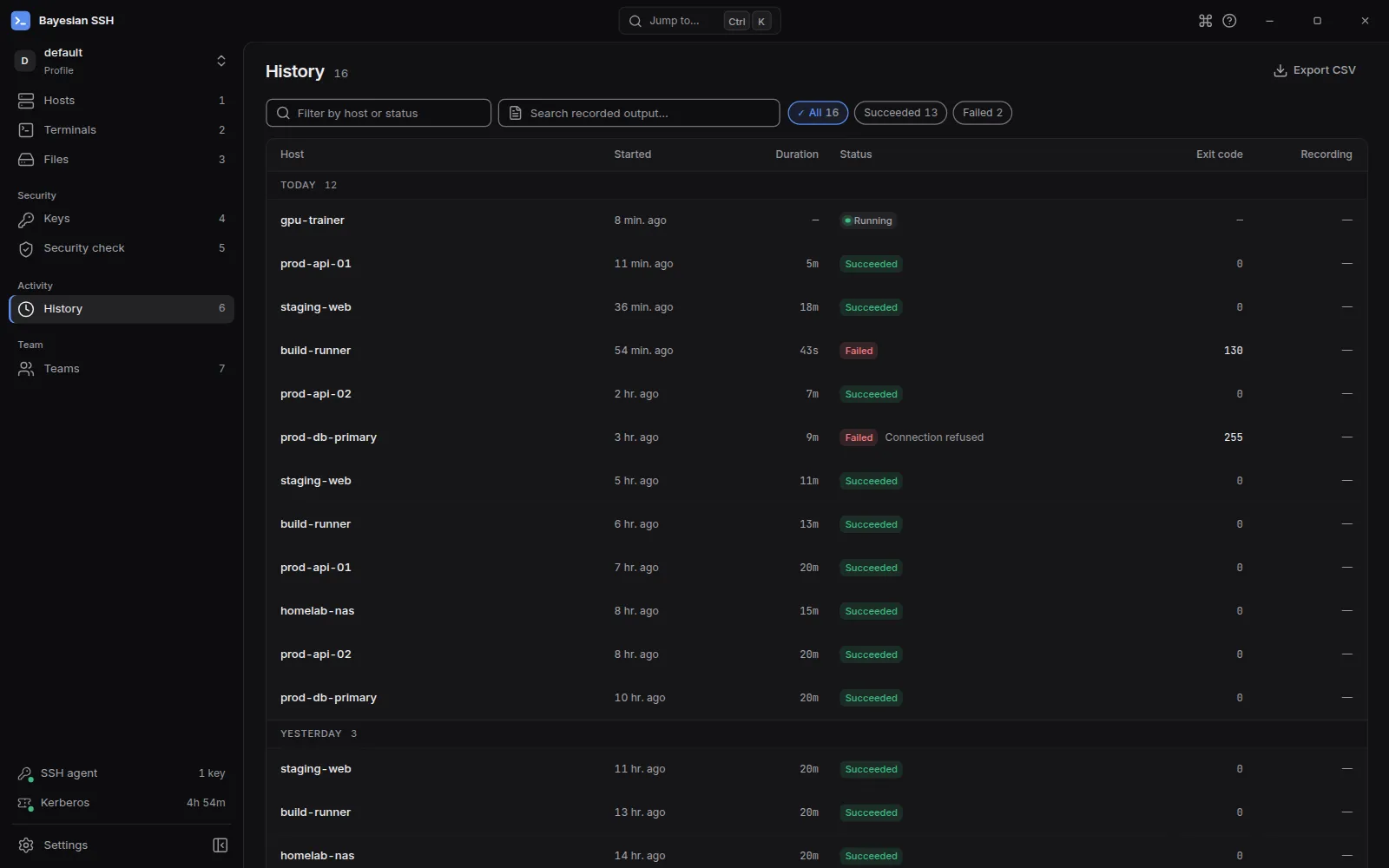
- History view: Click the History tab in the sidebar to review past sessions. You can filter by connection name or status, view execution timestamps, and click recorded sessions to launch the terminal replay player.
- Active terminals: Running terminal tabs appear in the top tab bar. Closing a tab terminates the corresponding SSH process.
- Detached sessions: If the desktop app detects sessions running in the background, access them from the command palette (Ctrl+K) by searching for Detached sessions.