
Members and devices
A team has members and devices. Each device has its own key and fingerprint, and an admin grants the team key to a device only after seeing that fingerprint from its owner. This is what keeps the sync server from adding a device of its own.
Only admins can invite people, grant keys, revoke invites and remove members.
Invite someone
Section titled “Invite someone”-
Admin: invite the member.
bssh teams invite platform ana@example.combssh prints two commands for Ana, with a one-time token and your device’s fingerprint. Send them over a channel where you know it is Ana.
-
Ana: create her account with the invite, then join, pinning the admin’s fingerprint.
bssh teams init --server https://teams.example.com --email ana@example.com --invite <TOKEN>bssh teams join <TOKEN> --fingerprint <ADMIN FINGERPRINT>bssh refuses to trust the team if no admin device of that team has that fingerprint. The join prints Ana’s device fingerprint.
-
Admin: grant the key to Ana’s device.
bssh teams grant platformThis lists the devices waiting for the key. Grant one only after Ana sends you its fingerprint:
bssh teams grant platform --fingerprint <ANA'S FINGERPRINT> -
Ana: sync.
bssh teams syncThe team’s connections appear in
bssh list.
-
Admin: open the team, choose Members & devices, then Invite. Enter the address and choose Create invite. The app shows the message to send, with the desktop and command-line steps, the one-time token, your fingerprint and the expiry. Choose Copy message.
-
Ana: in a new install, choose I was invited to a team during onboarding. Otherwise open Teams, choose Join with invite and paste the whole message; the app reads the token and the admin’s fingerprint from it. If Teams is not set up yet, paste the invite on the setup screen first.
-
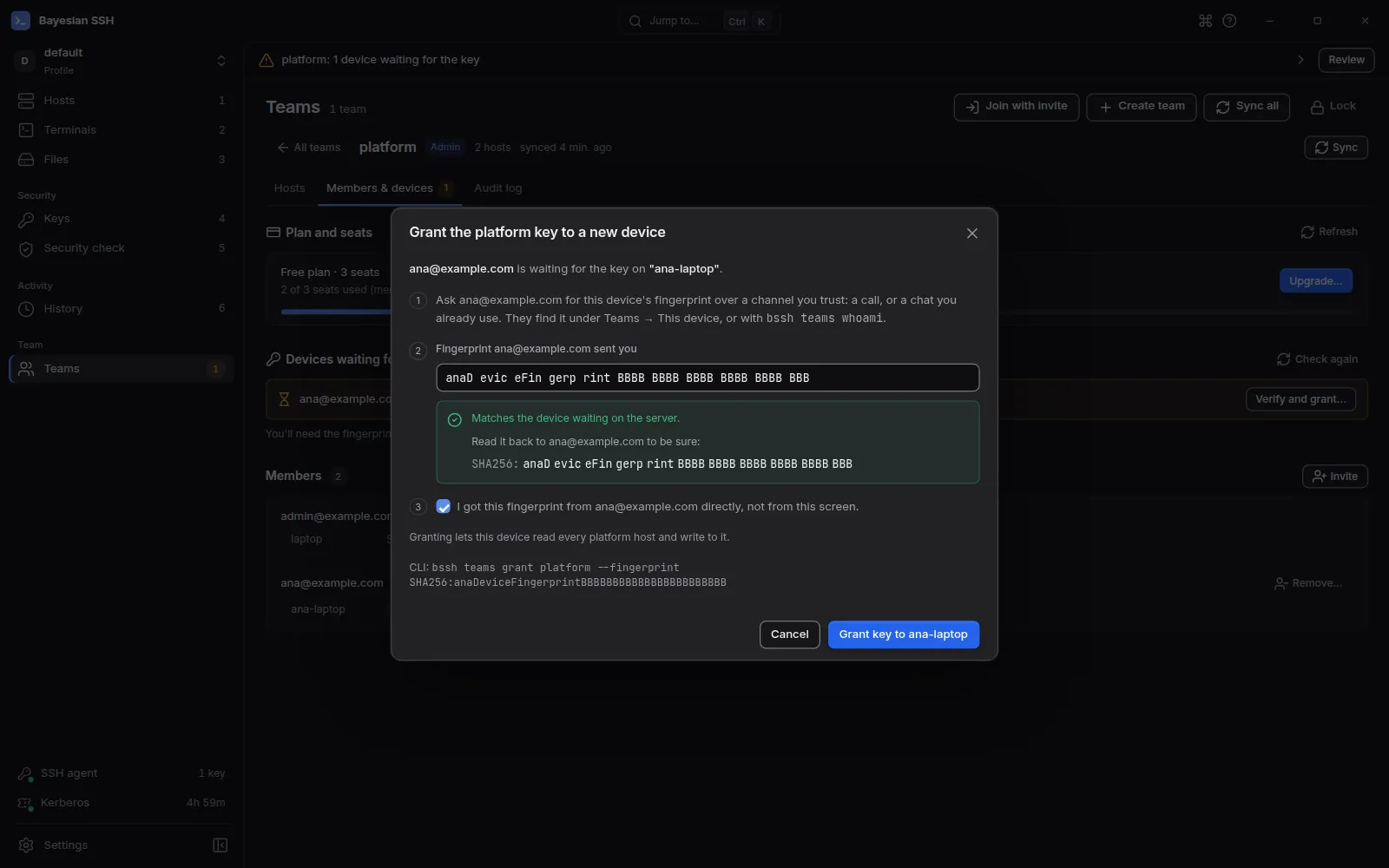
Admin: the device appears under Devices waiting for the key. Choose Verify and grant…, paste the fingerprint Ana sent you and tick the confirmation. In this dialog, the app never shows the fingerprint the server reports for the waiting device. Once the pasted fingerprint matches, it is shown in groups of four so you can read it back to Ana. Choose Grant key to ….
-
Ana: until the key arrives, the page shows Waiting for an admin to grant this device the key. Her fingerprint appears next to it, with a Copy button. While the page is open it checks every 30 seconds and syncs the team as soon as the key arrives.
Why fingerprints are exchanged out of band
Section titled “Why fingerprints are exchanged out of band”The invite carries the admin’s fingerprint, and the member pins it when joining. If the fingerprint does not belong to an admin device of the team, nothing is trusted: a server cannot pass itself off as the team’s admin. In the same way, an admin grants the key only to a fingerprint the member sent directly, so a server cannot slip in a device of its own.
Send fingerprints in a chat you already use, on a call, or in person. Not through the sync server, and not by reading them from the admin screen: the desktop app hides the fingerprint the server reports until the pasted one matches.
If the fingerprint does not match
Section titled “If the fingerprint does not match”Nothing was trusted, and the invite token is used up. Finish the join by team id with the right fingerprint:
bssh teams join --team <TEAM ID> --fingerprint <FINGERPRINT>The error message prints the exact command, with the team id. Check the fingerprint with your admin first: a mismatch can also mean the server is not the one you think.
In the desktop app, the join dialog explains the mismatch and offers Try again, which finishes the join the same way.
Pending invites
Section titled “Pending invites”A pending invite holds a seat until it is accepted or expires, 7 days after it was created.
Admins see pending invites with bssh teams members platform, and in the desktop app under Pending invites on the team’s Members & devices tab.
bssh teams uninvite platform ana@example.comThis revokes the invite: its token stops working and its seat is free again. In the desktop app, choose Revoke next to the invite. If the token was lost, revoke the invite and send a new one.
Make someone an admin
Section titled “Make someone an admin”bssh teams invite platform sam@example.com --adminAn admin can invite people, grant keys, revoke invites, remove members and read the audit log. In the desktop app, tick Make them an admin before Create invite.
Remove a member
Section titled “Remove a member”bssh teams remove platform ana@example.combssh asks for confirmation, removes Ana and rotates the team key.
Next to the member, choose Remove…. The dialog shows what will change: the next key version, which of their devices lose access, how many hosts they already synced, and which devices receive the new key. Type their email to confirm, then choose Remove and rotate key.
After the rotation, Ana’s devices can no longer sync, and nothing written afterwards is readable by them. They may still have copies of what they already synced, so rotate any credentials that matter.
A rotation wraps the new key only to devices this admin machine approved with bssh teams grant. If the server lists a device you never approved, the rotation stops and names it. On the command line, the member is already removed when this message appears; the team keeps its current key until the rotation succeeds. Check the device’s fingerprint with its owner and grant it, then sync again to finish the rotation. The desktop app’s Remove… dialog lists those devices and does not let you remove the member until each one is granted; if a rotation stops for another reason, the reason stays in the dialog.
Devices cannot be revoked one by one yet. To remove a single device, remove the member, then invite them again.
Members and devices
Section titled “Members and devices”bssh teams members platformThis lists each member with their role and the fingerprint of each of their devices, then the pending invites if you are an admin. In the desktop app, the team’s Members & devices tab shows the same, with a seat meter, the devices waiting for the key and a Remove… button for each member other than you.